
The BCE system includes a robust Notifications procedure designed to streamline day-to-day operations and help organisations stay on top of important activity.
The centralised Notifications Inbox provides a clear, organised view of all activity, making it easy to manage tasks, improve communication, and maintain smooth operational workflows.
Viewing Notifications
You can view your Notifications at any time by selecting Notifications from the left navigation menu.
The Notifications tray then slides out and displays your Notifications, with the most recent shown at the top.
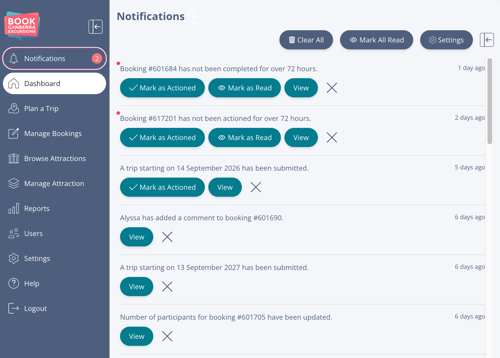
New Notifications are highlighted in 2 ways:
-
A red circle with a number on the Notifications icon shows how many new Notifications you have.
-
Inside the tray, new Notifications appear with a red dot next to them.
If you want to view older Notifications scroll to the bottom of the tray and click Load More.
Managing Notifications
You can choose from several actions within the Notifications tray, depending on what you need to do.
These actions are:
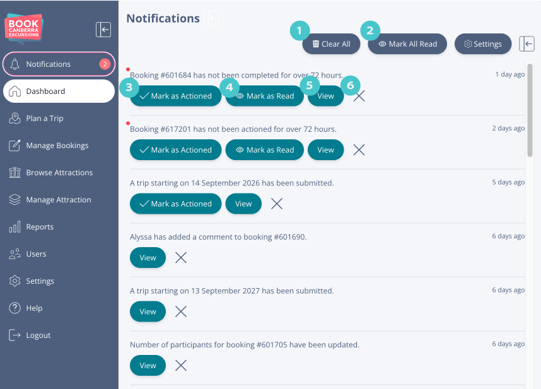
- Clear All:
Removes all Notifications from your Notifications tray.
This does not remove Notifications for any other Users in your organisation. - Mark All Read:
Marks all Notifications in your tray as read, and removes their red dot indicators.
This applies only to your Notifications.
It does not affect other Users. - Mark as Actioned:
Use this when you have taken responsibility for a required task or update.
Marking a Notification as actioned will update the Notification for all Users in your organisation. - Mark as Read:
Marks a single Notification as read, and removes its red dot indicator.
This applies only to your Notification.
It does not affect other Users. - View:
Opens the Booking or Trip a Notification relates to. - X (Remove):
Removes a Notification from your tray only.
Other users will still see the Notification in their tray.