---
title: "Manage Bookings: Advanced Actions"
description: Learn how to use advanced booking management options in Book Canberra Excursions, including admin edits, assigning presenters, updating invoices, rescheduling bookings, adjusting participant numbers, and managing trip changes.
---
[Skip to content](https://help.bookcanberraexcursions.com.au/knowledge-base/manage-bookings-advanced#main-content)
English - Australia
Show submenu for translations

Open main navigation
Close main navigation
- English - Australia
Show submenu for translations
- [Contact us](mailto:Support@bookcanberraexcursions.com.au)
[Contact us](mailto:Support@bookcanberraexcursions.com.au)
How can we help you?
- There are no suggestions because the search field is empty.
1. [General User Help](https://help.bookcanberraexcursions.com.au/knowledge-base?hsLang=en-au)
2. [Bookings](https://help.bookcanberraexcursions.com.au/knowledge-base/bookings?hsLang=en-au)
# Manage Bookings: Advanced Actions
### **Additional Booking Management Options**
The BCE system provides additional **Booking Management** tools that may appear, depending on your User permissions.
These options allow you to make changes or updates to a Booking beyond what is available in the standard Booking Card.
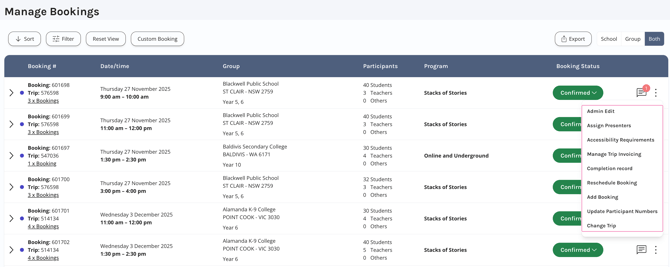
**To access the additional options:**
1. Locate the Booking you want to manage.
2. On the far-right side of the booking row, click the **Vertical Ellipsis \[⋮\]**.
3. A dropdown menu will appear listing **Management Options**.
#### ****
**Administrator Edit**
Allows Admin-level Users to update all Booking details.
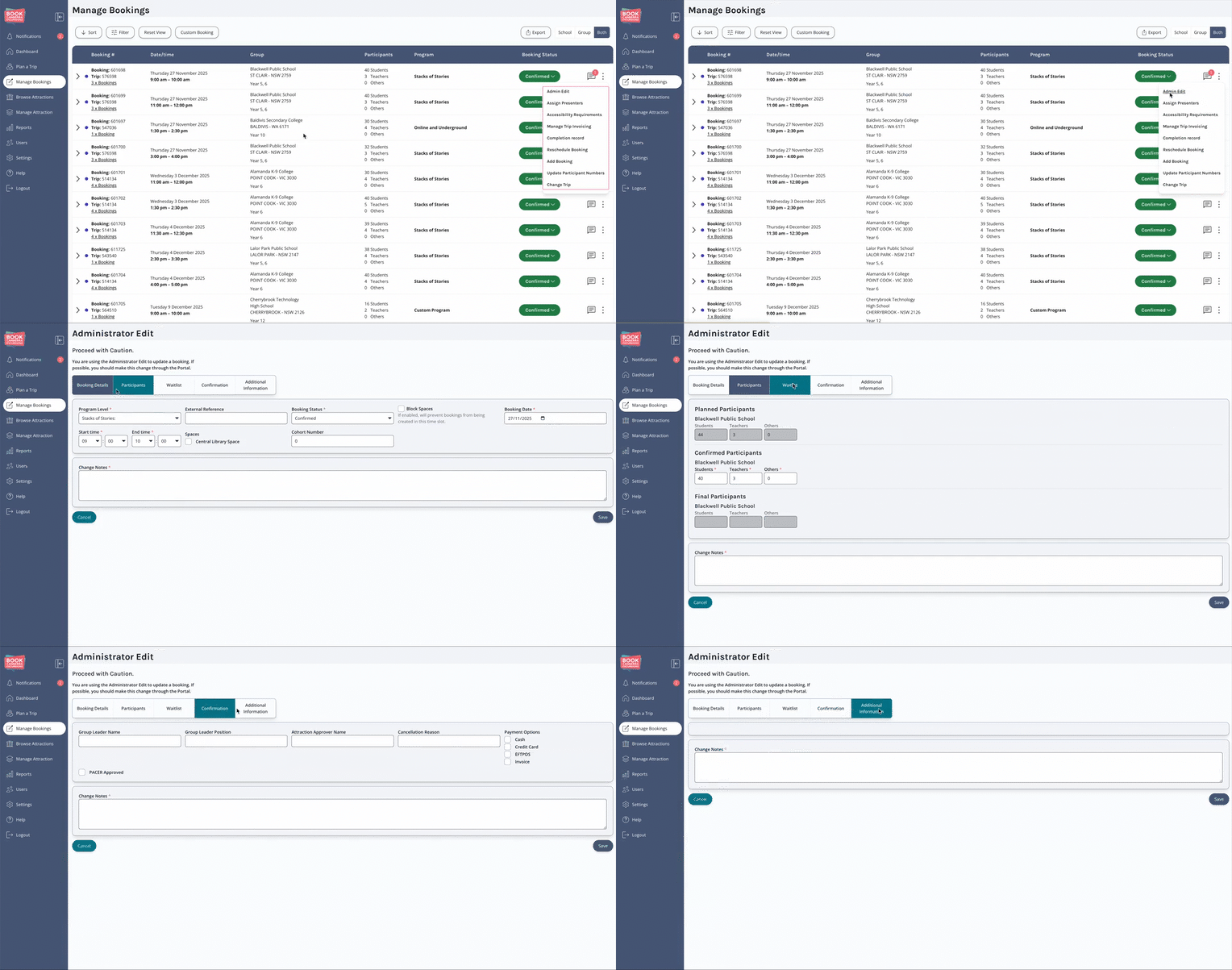
❗ Attraction Users are encouraged to ask Tour Organisers to make Booking changes, rather than making the changes themselves.
#### **Assign Presenters**
Clicking this option enables you to assign 1 or more Presenters to a Booking.
#### **Accessibility Considerations**
Allows you to add or update participant **Accessibility Considerations**.
Tour Organisers have the ability to flag **Accessibility Consideration** related to Bookings.
Bookings with **Accessibility Considerations** are indicated with an icon as shown below:

**How to flag Accessibility Considerations:**
#### **Manage Trip Invoicing**
Provides access to edit or update a booking’s invoice details.
Users with invoicing permissions can adjust quantities and charges as needed.
#### **Completion Record**
Initiates a file download of a **Completion Record** for Trips that have been completed and for which a **Completion Record** exists.
If you are unable to download a **Completion Record**, first confirm the Booking has a 'Completed' status.
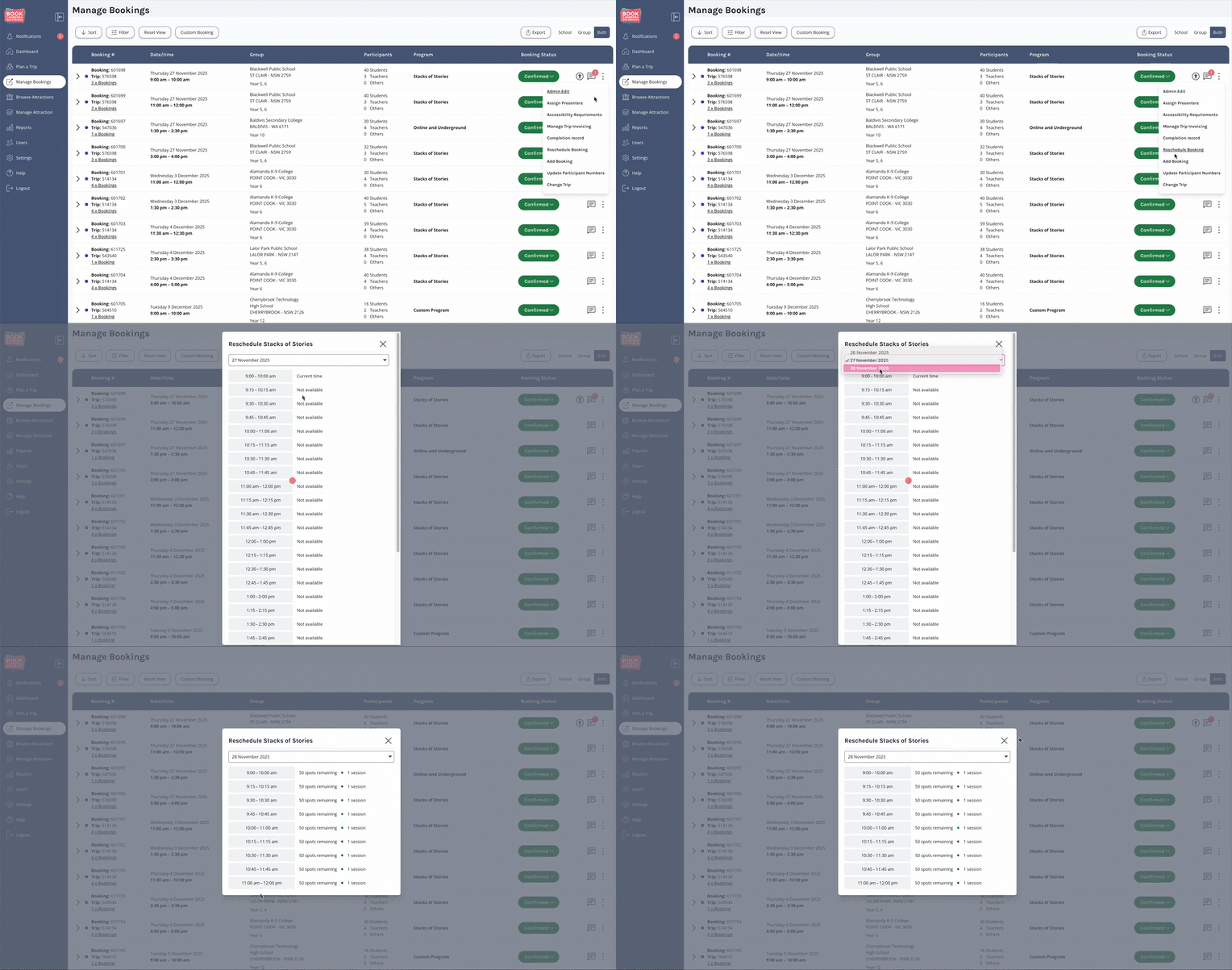
#### **Reschedule Booking**
Allows you to change the **date** or **time** of a Booking.
When rescheduling, simply select the new timeslot you want to assign the Booking to.
The BCE system will display all available timeslots for the original Booking date, as well as a day each side of that date, so you can easily choose an appropriate alternative.
#### **Add a Booking**
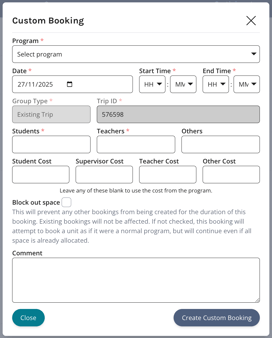
Used when you need to add an additional Booking to an existing Trip.
This is treated like a **Custom Booking**.
To create a new Booking, complete the form and click **Create Custom Booking**.
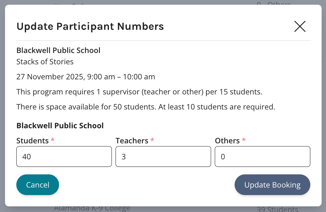
#### **Update Participant Numbers**
Allows you to update or correct the **number of participants** listed on the Booking.
#### **Change Trip**
Enables you to move a Booking into a different Trip.
This is typically used to resolve duplicate Trips.
**Steps**:
1. Identify the Trip you want to **merge to**.
****
2. Copy the TripID.
3. Click on the **\[⋮\]** menu.
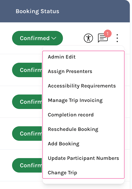
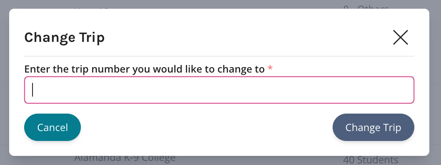
4. Click **Change Trip**.
5. In the popup window, paste the TripID and click **Change Trip**.
****
- [Accounts](https://help.bookcanberraexcursions.com.au/knowledge-base/accounts?hsLang=en-au)
- [Attractions](https://help.bookcanberraexcursions.com.au/knowledge-base/attractions?hsLang=en-au)
- [Bookings](https://help.bookcanberraexcursions.com.au/knowledge-base/bookings?hsLang=en-au#main-content)
- [For Tour Operators & Teachers](https://help.bookcanberraexcursions.com.au/knowledge-base/bookings?hsLang=en-au#for-tour-operators-teachers)
- [For Attractions](https://help.bookcanberraexcursions.com.au/knowledge-base/bookings?hsLang=en-au#for-attractions)
- [Documents](https://help.bookcanberraexcursions.com.au/knowledge-base/documents?hsLang=en-au)
- [Manage Your Organisation](https://help.bookcanberraexcursions.com.au/knowledge-base/manage-your-organisation?hsLang=en-au)
- [Notifications](https://help.bookcanberraexcursions.com.au/knowledge-base/notifications?hsLang=en-au)
[](https://www.bookcanberraexcursions.com.au/)
[mailto:support@bookcanberraexcursions.com.au](mailto:support@bookcanberraexcursions.com.au)
Copyright © 2025,