
As your Trip planning progresses you may receive updated Participant Numbers.
Follow these steps to update Participant Numbers in the BCE system:
- Locate the Trip: Go to the Manage Bookings tab and find the Trip you wish to update.
Filters can help you quickly locate the correct Trip.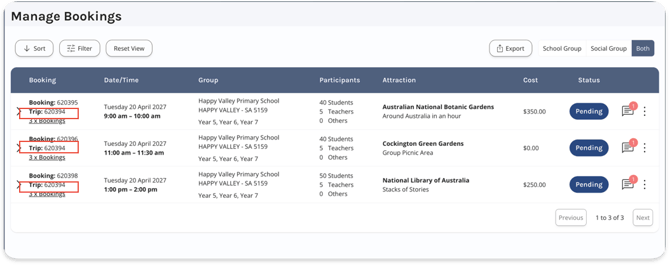
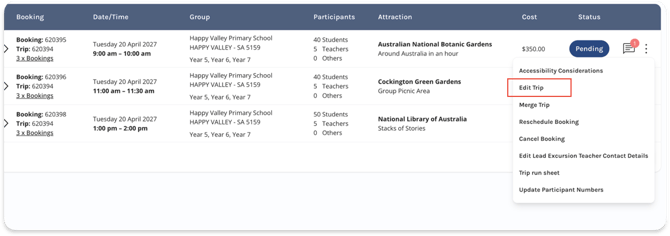
- Open the Update Menu: Click the Vertical Ellipsis [⋮] on the right side of any Booking row.
- Select Edit Trip from the list of actions.
- Trip Participant Numbers cannot be adjusted below the highest number of Participants declared for any Booking attached to the Trip.
In the example below, to change the Trip's Students to 45, first find the Booking flagging more Planned Students and adjust that number by clicking the edit icon, as indicted by the red arrow.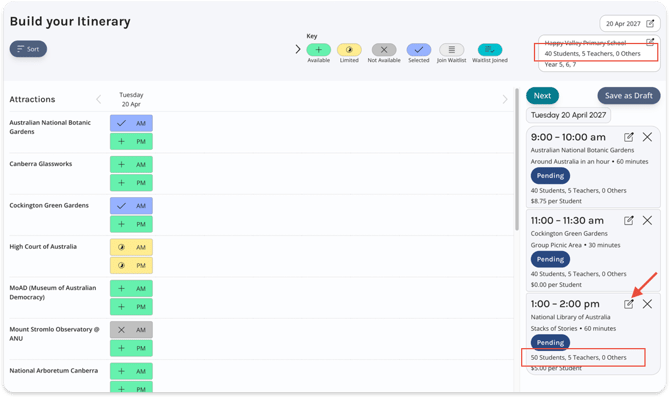
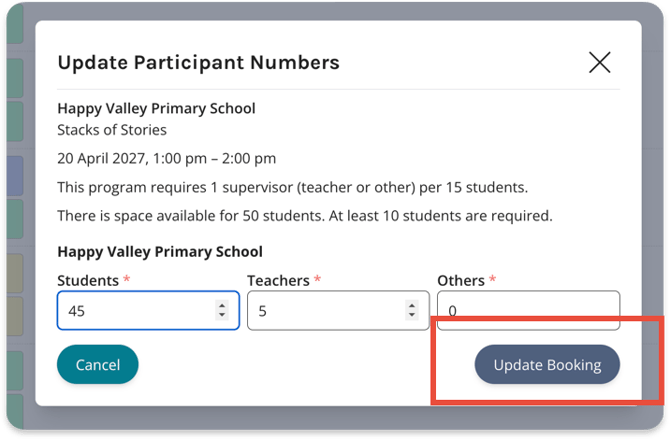
- Update the Planned Students number and click Update Booking to save your changes.
Tip: Use this method to update participant numbers for multiple Bookings. - When no Bookings have Planned Students numbers higher than the desired Trip Participant Number, you can proceed on editing the Trip's participant numbers.
Click the edit icon on the Trip as indicated below.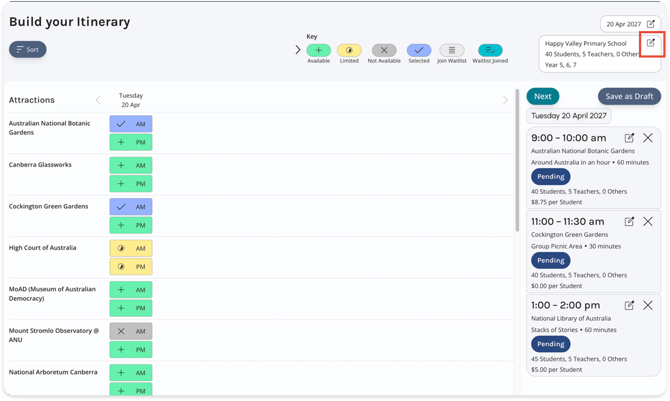
Now, you can update the Trip Participant Numbers.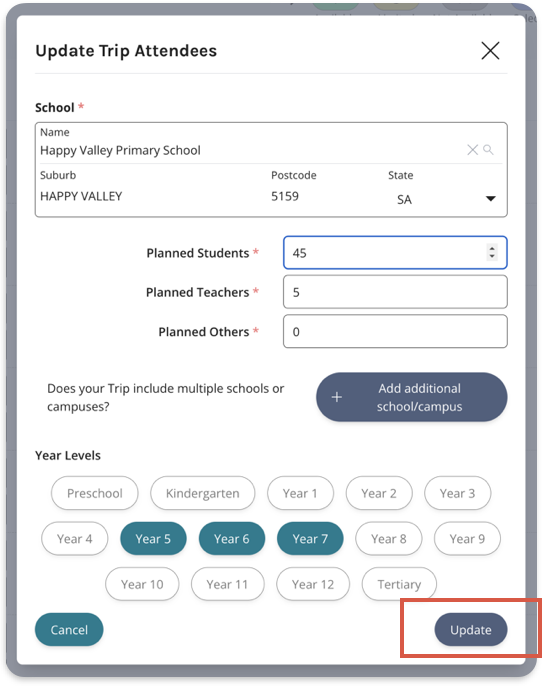
- Save Your Changes: Click Update to confirm your changes.
Important Note:
If it is too close to a Booking date, or if a Booking has been Confirmed, you will not be able to update Participant Numbers through the BCE system.
In this case, you must contact an Attraction directly so they can update numbers for you.