
Attraction Owners can use the Manage Attraction section to update Attraction information, configure settings, and control how the Attraction appears within the BCE system.
This guide explains how to access and update key details.
 1. Access the Manage Attraction Page
-
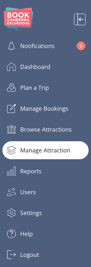
Log in as an Attraction Owner.
-
In the left-hand navigation menu, click Manage Attraction.
-
You will land on the first tab: Attraction.
2. Update Attraction Information
Within the Attraction tab you can update the main details that appear to Tour Operators and Teachers:
Closure Dates
Add or update Closure Dates to ensure Bookings cannot be made during periods when your Attraction is unavailable.
Billing Details
Update your Attraction’s billing information so invoices and finance-related communications are accurate.
Attraction Summary and Description
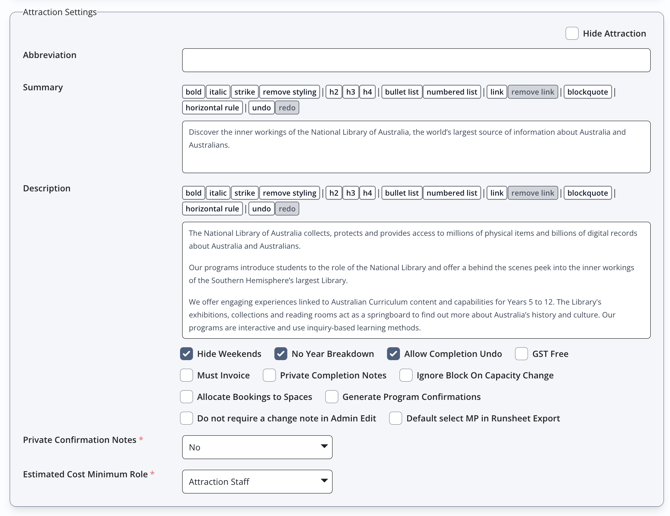
Add or edit your Attraction’s:
-
Summary – a short introduction.
-
Description – a more detailed overview of what your Attraction offers.
These are displayed publicly when users browse Attractions, so the content should be clear and engaging.
Hide Attraction
You can choose to hide your Attraction from BCE users.
-
When hidden, your Attraction will not appear in Browse Attractions.
-
No new bookings can be made while it is hidden.
Attraction Settings
You can enable or disable various predefined settings by selecting the checkboxes that apply.
These options control additional operational preferences and optional attraction behaviours.
3. Update Images
-
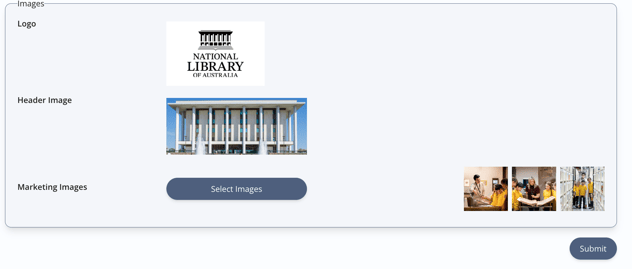
Logo.
-
Header Image.
-
Marketing Images.
These images are displayed on your Attraction’s BCE landing page, helping to create a strong visual impression.
4. Save Your Changes
After making all required updates, scroll to the bottom of the page and click Submit to save and publish your changes.