
If you have Custody of a Trip you can Change Year Levels.
To do so, follow the steps below:
Step 1: Locate the Trip
-
Go to the Manage Bookings tab.
-
Use the Filter feature to quickly find the Trip you want to update.
You can search using:-
School name
-
Trip ID
-
Date range
-
Booking status
-
and other filter options.
-
-
When you locate the correct Trip click the Vertical Ellipsis [⋮] on the right side.
-
Select Edit Trip.
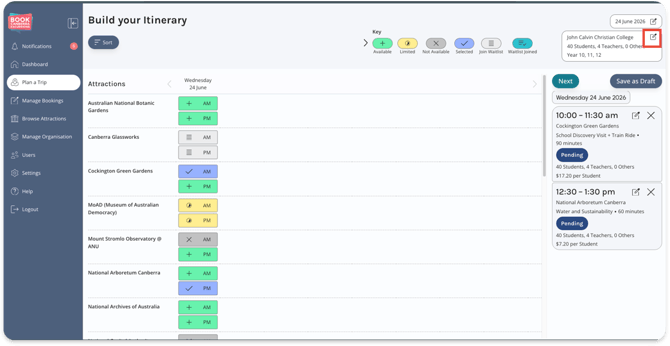
This will reopen the Trip in the Build Your Itinerary page.
Step 2: Update Year Level for the Trip
- Click the edit icon [pencil] in the top right corner.
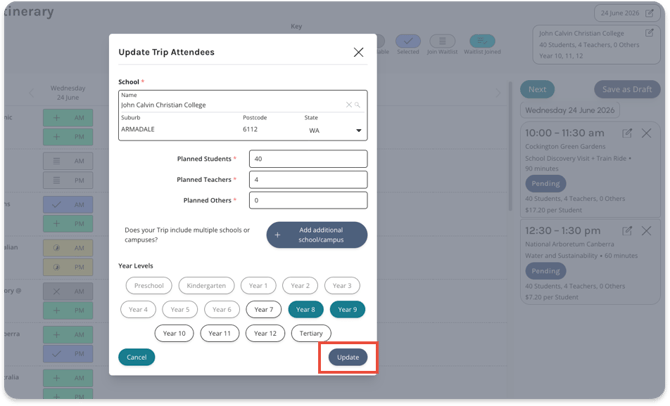
- Change the Year Levels as required.
- Update the Trip by clicking the Update button at bottom right.
When you Change Year Levels you must ensure all Bookings in the Trip are at the correct Year Level.
You may have to contact individual Attractions to ensure this is the case.