
The Dashboard is accessible from the left navigation menu.
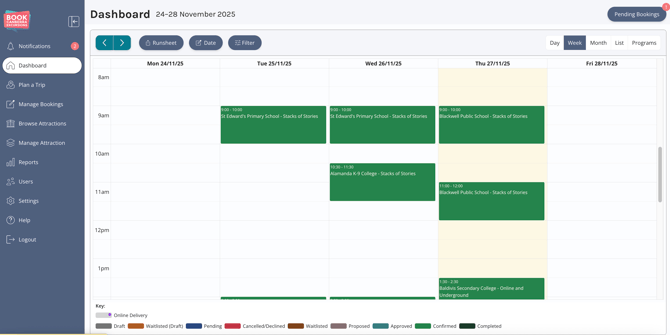
It displays Bookings in a calendar format.
This view is ideal for understanding booking volume, availability, and activity across different dates.
1. Dashboard Features
- Navigation Controls: Use the left (<) and right (>) arrow icons to move forward or backward through the date range you are viewing.
- Date & Time Filters: The Date Filter allows you to set a specific date or a custom date range.
- Program Filter: You can view the Booking for the selected date range, arranged by Program name.
Booking Status Legend
A colour-coded legend appears at the bottom of the page.
Each colour represents a different Booking Status.
The colour of each Booking block in the calendar matches its Status.
2. Filtering Bookings
You can filter bookings by Booking Status.
You can narrow your calendar view to show only the types of Bookings you want to focus on (e.g. only Pending Bookings or only Confirmed Bookings).
Available Status filters include:
-
Draft
-
Waitlisted
-
Pending
-
Cancelled/Declined
-
Proposed
-
Approved
-
Confirmed
-
Completed
You can use any combination of filters to personalise your view.
3. Exporting a Runsheet
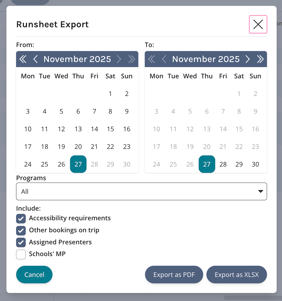
You can export a Runsheet based on your selected date range.
This export can be downloaded as a PDF or XLSX file.
 Steps:
-
On the top-left corner of the Dashboard, click Runsheet.
-
A popup window will appear.
-
In this window you can choose:
-
The date range you want to export.
-
The Programs you want included in the Runsheet.
-
Whether to include additional information such as:
-
Accessibility Considerations.
-
Other Bookings occurring at the same time.
-
Presenter information.
-
Relevant medical and/or personal information.
-
-
-
After selecting your options, export the Runsheet as a PDF or XLSX file.