
Spaces in the BCE system represent the physical rooms or areas where programs are delivered.
Each program must be assigned to at least 1 space.
Settings applied to that space affect when programs can be scheduled.
Steps to Create a New Space
-
Click Manage Attraction from the left navigation menu.
-
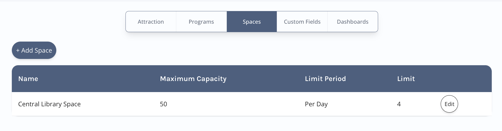
Open the Spaces tab at the top of the page.
-
Click + Add Space.
-
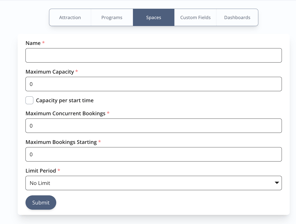
Enter the Space details:
-
Name
The name of the Space (shown only when configuring programs). -
Maximum Capacity
Maximum number of people allowed.
If the number is set as 0 the BCE system assumes an unlimited number of people are allowed to attend a Booking, so it is usually best to provide a number here. -
Per Start Time
If enabled, the capacity applies Per Start Time rather than across all concurrent Bookings. -
Maximum Concurrent Bookings
Limits how many Bookings can run at the same time.
If the number is set as 0 the BCE system assumes an unlimited number of Bookings can occur concurrently.
If you only want 1 Booking at a time to be available set this to 1. -
Maximum Bookings Starting Concurrently
Limits how many Bookings can begin at the same time.
If the number is set as 0 the BCE system assumes an unlimited number of Bookings can start concurrently. so it is usually best to provide a number here.
-
-
Click Submit to save the new Space.
-
You can now allocate programs to this Space via the Programs tab.
Steps to Edit an Existing Space
-
Click Manage Attraction in the left navigation menu.
-
Open the Spaces tab.
-
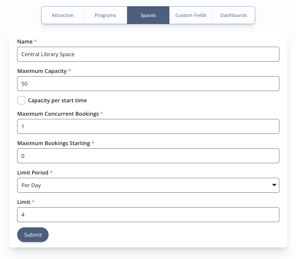
Find the Space you want to update and click Edit.
-
Make any changes needed.
-
Click Submit to save your updates.